ComfyUI interface basics: read the canvas, nodes and queue
A first orientation to ComfyUI’s node canvas, workflow graph, model and node panels, execution queue, and saved outputs. Labels vary between versions; this guide uses the current official interface documentation and is not a live UI test.
What you are looking at
ComfyUI is a visual editor for a workflow graph. A workflow is a sequence of operations represented by nodes on a canvas. Links carry typed data from one node’s output to another node’s input; node properties hold settings such as a prompt or image size. A typical image graph loads a model, encodes text, samples an image and saves a result. Other workflows can create video, audio or 3D outputs, and the graph differs by task. Official workflow concepts
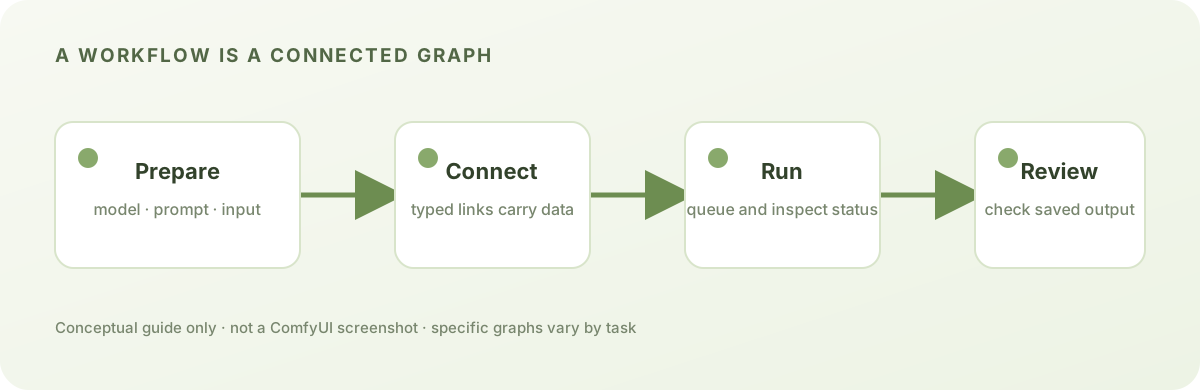
Find the main interface areas
The current interface documentation describes a main menu, a central workflow workspace, left-side panels for assets, nodes, models, workflows and templates, bottom toolbar controls, and a right-side area for running work and viewing the queue. The exact arrangement and names can change between frontend versions or menu modes; use the settings and help in your installed version if a label differs. Official interface overview
- Canvas / workspace: the graph is arranged here. Pan and zoom to inspect it; selection and navigation shortcuts are configurable.
- Nodes: each box performs a job, such as loading a model, processing an image, or saving output. A missing node usually means the needed class is unavailable or did not load; it is not itself proof that a model file is missing.
- Links: follow the wires from inputs through processing to output. Connectors carry particular kinds of data, so an image socket and a model socket are not interchangeable.
- Models and templates: the model panel can show detected local model files. Built-in templates are starting graphs and may ask you to obtain their required models. A model family or filename alone does not establish compatibility; check the workflow’s documented pairing. Official model guide
- Queue / execution: submitting a workflow schedules its graph for execution. Queue state and runtime messages help distinguish waiting, running, completed and failed work.
Before the first run
- Choose a workflow intended for your task and ComfyUI version. Prefer a built-in template or a source whose author identifies its required model files and custom nodes.
- Read the graph from source to output. Confirm model loaders select files available to this ComfyUI instance, required input images are present, and the final branch reaches an output node.
- Resolve missing nodes or files before repeatedly submitting. Do not install a package just because a node label looks unfamiliar; check its technical class and source.
- Submit once, then inspect both the queue and the node marked with an error if it fails. A workflow is not proven successful because it appears on the canvas.
- Open the output node or the documented output location for that workflow. Some node types save to task-specific subfolders; do not assume every output is in the same folder.
The current official shortcuts page lists execution, workflow save/load, settings and canvas navigation shortcuts, but key bindings can be customized. Open the Settings shortcut list in your own interface before relying on a shortcut. Official keyboard and mouse shortcuts
Evidence and limits
This is a reference summary based on the official pages linked below, checked on 2026-09-23. It does not include a screenshot from a particular release, claim a GPU run, or guarantee that controls appear in the same positions in Desktop, Cloud, legacy-menu or future versions. Use the in-app help and the documentation matching your installed frontend when details differ.
Was this page helpful?
Anonymous. Only a yes/no counter is stored; no account, IP address or device details.
Sources & references
Summarized from the listed official documentation; not executed by this site.
01ComfyUI Interface OverviewSource checked: 2026-09-2302ComfyUI workflow conceptsSource checked: 2026-09-2303ComfyUI ModelsSource checked: 2026-09-2304ComfyUI keyboard and mouse shortcutsSource checked: 2026-09-23